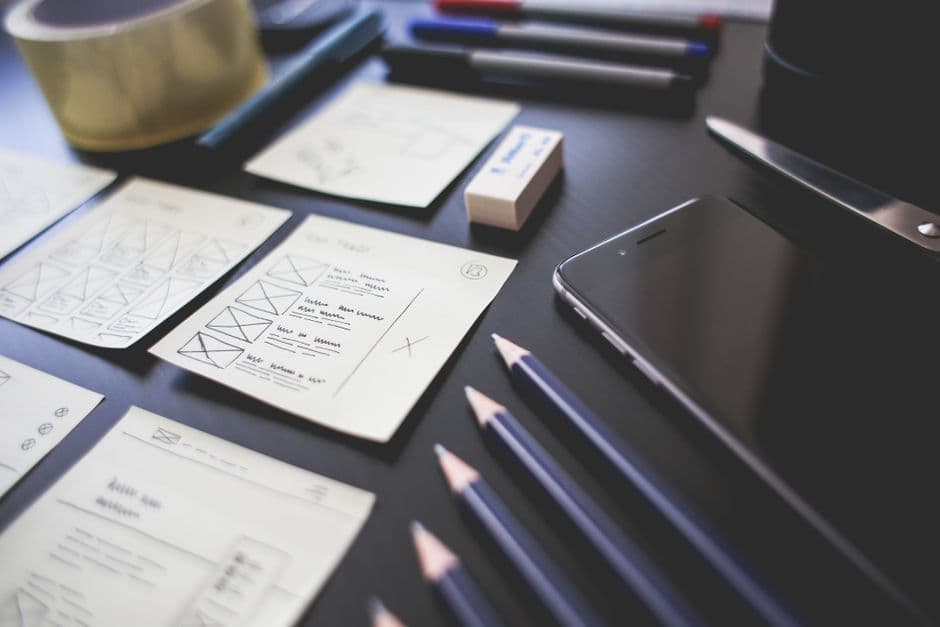
A mockup is a static, high-fidelity visual representation of a design — what the final product will look like — while a prototype is an interactive simulation that shows how it will behave. Mockups answer “How does it look?” and prototypes answer “How does it work?” In a typical 2026 web design workflow, you build wireframes first, then mockups for visual approval, then prototypes for interaction testing before any code is written.
What Is a Mockup?
A mockup is a static design that shows the final visual treatment of a page or screen. It includes real typography, colors, imagery, spacing, and content — but it doesn’t move, click, or respond. Think of it as a finished oil painting of your interface: every pixel is in its final place, but nothing is interactive.
Mockups are typically built in Figma, Sketch, or Adobe XD. They sit between low-fidelity wireframes and fully coded designs in the production pipeline. For web design specifically, mockups translate the abstract structure from a wireframe into a polished, brand-aligned visual.
What’s Included in a Mockup
- Final color palette and brand application
- Typography hierarchy with real fonts and sizes
- Real or representative photography and imagery
- Icon style and visual elements
- Spacing, padding, and grid system applied
- States for components (default, hover, disabled) shown side by side
What’s Missing From a Mockup
- No clickable elements
- No transitions or animations
- No user flow simulation
- No responsive behavior beyond static breakpoints
What Is a Prototype?
A prototype is a clickable, interactive simulation of your design. Visitors can move between screens, trigger states, fill out forms, and experience how the product feels — without writing a line of production code. Prototypes can range from low-fidelity (gray boxes that just link together) to high-fidelity (pixel-perfect mockups stitched together with realistic transitions and conditional logic).
In 2026, the most common prototyping tools are Figma (built-in prototyping), Framer (which produces production-ready code from the prototype), ProtoPie for complex interactions, and Axure for enterprise documentation. Each occupies a different sweet spot on the fidelity/realism scale.
What’s Included in a Prototype
- Clickable hotspots and navigation between screens
- Hover, press, and active states
- Transitions and motion (fade, slide, spring)
- Conditional logic (“if user clicks A, show B”)
- Form behavior — validation, error states, success states
- Scroll behavior, sticky elements, modals
Mockup vs Prototype: Key Differences
Both deliverables serve different stages of the design process. Conflating them wastes time and produces ambiguous feedback from stakeholders.
Fidelity
Mockups are always high-fidelity by definition — they exist to show final visual decisions. Prototypes exist across the fidelity spectrum. A low-fidelity prototype might be paper sketches taped together with arrows; a high-fidelity prototype is indistinguishable from the finished site until you try to do something it doesn’t simulate.
Interactivity
Mockups: zero. Prototypes: variable. Even the lowest-fidelity prototype has some level of clickable interactivity, which is the entire point.
Purpose
Mockups exist to lock visual decisions — colors, type, imagery, brand application. Prototypes exist to validate interaction patterns and user flows. You approve a mockup so the designer can stop iterating on visuals. You test a prototype so the team can fix usability issues before development.
Audience
Mockups are typically reviewed by clients, executives, brand stakeholders, and creative directors. Prototypes are tested by actual users and reviewed by product managers, UX researchers, and developers who need to understand the interactions they’re about to build.
Time to Produce
A high-fidelity mockup for a single page typically takes 4-12 hours in Figma. A prototype for the same page can take an additional 2-8 hours depending on complexity. A full user-flow prototype with branching logic can take 20-40 hours.
The Design Process: Where Mockups and Prototypes Fit
The standard 2026 web design workflow moves from low to high fidelity in defined stages.
1. Discovery and Information Architecture
Define goals, audience, and content structure. Outputs: sitemap, user personas, content audit. No mockups or prototypes yet — just strategy. Our information architecture guide covers this stage in detail.
2. Wireframing
Low-fidelity layouts showing structure and hierarchy. Black, white, gray. No imagery, no brand. Purpose: agree on what goes where.
3. Mockups
Apply brand, typography, color, and imagery to the approved wireframe. Iterate until stakeholders sign off on the visual direction.
4. Prototyping
Stitch mockups together with transitions, hover states, and conditional logic. Run usability testing with 5-7 users to surface problems.
5. Design Handoff and Development
Export specifications, design tokens, and assets. Developers build production code referencing the prototype as the source of truth for interactions.
Tools for Mockups and Prototypes in 2026
Figma
The default for mockups across most design teams. Its built-in prototyping handles ~80% of standard web design needs — page-to-page navigation, hover states, simple transitions, smart animate, and overlays. Auto Layout makes responsive mockups straightforward. Figma’s Dev Mode produces handoff specs developers can read directly.
Framer
Framer blurs the mockup/prototype/production boundary entirely. Designs built in Framer are simultaneously mockups, prototypes, and shippable code. For Framer-native projects, you skip the handoff step because the prototype is the production site. See our Framer tutorial for beginners.
ProtoPie
For complex interactions Figma can’t handle — sensor input, conditional state machines, multi-touch gestures, IoT integrations. Common for mobile-first product teams.
Axure RP
Enterprise tool for complex, documentation-heavy prototypes. Variables, conditional logic, and dynamic content make it powerful for B2B SaaS applications with heavy state management.
Adobe XD
Still in use but adoption has declined as Figma has consolidated the market. Its prototyping handles voice and auto-animate well.
When to Use a Mockup
- Brand sign-off — when stakeholders need to see the final look before approving production.
- Marketing assets — pitch decks, sales collateral, website-feature graphics often use mockup screenshots.
- Design system documentation — component pages showing all states side by side.
- Style guide creation — locking the visual language for the rest of the project.
When to Use a Prototype
- Usability testing — watching real users try to complete tasks.
- Stakeholder demos — selling the experience, not just the look.
- Developer handoff — eliminating ambiguity about how interactions should feel.
- Investor pitches — showing what the product will be like, not just what it will look like.
- Cross-team alignment — getting product, engineering, and marketing on the same page.
Common Mistakes
Skipping Mockups and Going Straight to Prototype
Without locked visual decisions, prototype iterations turn into endless visual debates. Lock the look first, then animate it.
Prototyping Too Much Detail Too Early
High-fidelity prototypes are expensive to build and expensive to change. Test core flows with low-fidelity prototypes first, then invest in high-fidelity for the final usability tests.
Treating the Prototype as the Production Spec
Unless you’re using Framer or a code-generating tool, the prototype is a simulation — not production code. Always create proper handoff documentation for engineering.
Forgetting Edge Cases
A pristine prototype shows the happy path. Real production needs error states, empty states, loading states, and accessibility considerations. Build these into the mockup phase.
No User Testing on Prototypes
A prototype that never gets tested by real users is just an animated mockup. The whole point is to discover usability problems before they cost developer time.
Mockup-to-Prototype Workflow Example
Here’s a typical 2026 workflow for a marketing site:
- Sitemap and content brief approved.
- Low-fi wireframes for all key page types (homepage, product, pricing, about, blog).
- High-fi mockups built in Figma for the same page types, with light and dark modes.
- Stakeholders approve mockups. Visual decisions locked.
- Prototype built linking mockups together with transitions and hover states.
- 5-user usability test using the prototype. Issues logged.
- Mockups revised based on findings. Prototype updated.
- Final prototype shared with developers for production build.
For Framer projects, steps 5-8 collapse into one continuous build because the prototype is the production site. This compression is one reason Framer adoption has accelerated in 2026 — it eliminates an entire handoff cycle.
Frequently Asked Questions
Can a prototype replace a mockup?
Not entirely. A high-fidelity prototype contains all the visual decisions a mockup contains, but mockups are often easier to share for visual sign-off because they’re static images that can be embedded in decks, emails, and printed assets. Most teams produce both.
Do I need a designer to create a prototype?
For low-fidelity prototypes, no — anyone can wire screens together in Figma or Framer. For high-fidelity production-ready prototypes, you typically want a designer who understands interaction patterns, motion timing, and accessibility.
How long does it take to create a mockup?
A single-page high-fidelity mockup typically takes 4-12 hours depending on complexity and how much existing design system work you can pull from. A complete marketing-site mockup set (5-8 pages) usually takes 1-3 weeks.
What’s the difference between a wireframe, mockup, and prototype?
Wireframes are low-fidelity structural layouts (boxes and labels). Mockups are high-fidelity static designs (the final look). Prototypes are interactive simulations (the final feel). The typical order is wireframe → mockup → prototype, moving from cheap-to-change to expensive-to-change.
Need a team that handles mockups, prototypes, and production in one flow? See our pricing or contact us to discuss your project.