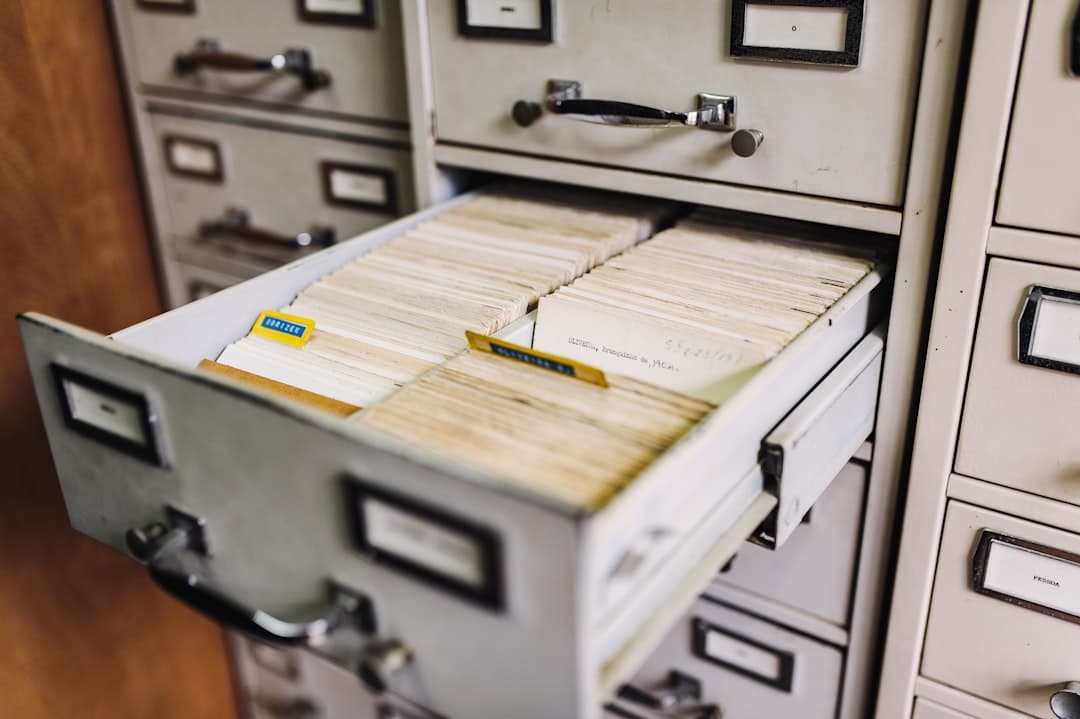
The Framer asset library is a centralized panel where every image, video, font, icon, color, and reusable component used across your site is stored, organized, and ready to drop into any page. A well-managed library means faster builds, consistent design, and fewer late-night searches for that one logo file you swore you uploaded last week.
What Is the Framer Asset Library?
The asset library in Framer is the project-wide repository for media and design tokens. Every time you upload an image, embed a video, install a font, or save a color style, it lands in this library and becomes available to every page, every component, and every CMS entry in your project.
It handles five major asset categories:
- Images (PNG, JPG, WebP, AVIF, SVG, GIF)
- Videos (MP4, WebM, MOV)
- Fonts (Google Fonts, Adobe Fonts, custom WOFF and WOFF2)
- Icons and vectors (SVG sets, Lucide icons, custom marks)
- Components and styles (reusable layouts, color tokens, text styles)
Unlike WordPress, where the media library lives in a separate admin screen, Framer keeps assets a single panel away from the canvas. This proximity changes how designers work because reusing the right file becomes faster than uploading a new one.
How Assets Are Organized
Framer organizes assets in a few ways depending on the type. Images and videos live in the Assets panel, accessible from the left sidebar. You can create folders, drag files between them, and rename anything inline. Fonts and color styles live in the design panel under their own tabs. Components live in a dedicated Components panel and can be nested in folders.
Three habits make organization stick:
- Folder by purpose, not by date. Group hero images, product shots, and team photos in separate folders rather than dumping everything by upload month.
- Reuse before re-upload. Before dragging a new file in, search the library. Duplicate uploads bloat the project and create version drift.
- Delete on close. When a page is removed or a campaign ends, audit the library and clear orphaned files. Framer does not auto-purge unused assets.
Image Assets
Images make up the bulk of most projects. Framer accepts PNG, JPG, WebP, AVIF, SVG, and GIF formats and automatically generates responsive versions for different screen sizes when you publish.
Upload: drag files directly onto the canvas or into the Assets panel. Bulk uploads work for folders of up to several hundred images at a time, though the editor will slow down with very large batches.
Optimization: Framer compresses images at publish time and serves them through its global CDN. You still want to upload reasonable sizes. A 12MB hero photo gets compressed, but it eats your project storage and slows editor performance. Resize source files to roughly the maximum display dimensions before uploading.
WebP and AVIF: Framer automatically converts uploaded JPGs and PNGs to modern formats when browsers support them. You do not need to manually export WebP files. That said, uploading a WebP source preserves the highest quality compression. For deeper coverage of compression strategy, see our image optimization guide.
Alt text: select any image on the canvas and add alt text in the right panel. This is critical for accessibility and SEO. Missing alt text is the most common audit failure on hand-built Framer sites.
Video Assets
Video lives in the same Assets panel as images and supports MP4, WebM, and MOV formats. Framer recommends keeping video files under 50MB for performance. Anything heavier should be hosted externally on YouTube, Vimeo, or a dedicated video CDN and embedded via the Embed component.
Configurable video properties:
- Autoplay: triggers playback as soon as the video enters the viewport. Browsers require muted autoplay, so always enable mute alongside it.
- Loop: ideal for short ambient background clips of 5 to 10 seconds.
- Controls: show or hide the native playback UI. Background videos hide controls, while hero videos with content typically show them.
- Poster image: a still frame that displays before playback starts. Always set one to avoid a black flash on page load.
For background hero videos, encode at 1080p with a target bitrate of 2 to 3 Mbps. This keeps file size manageable while looking sharp on retina screens.
Icon Sets and SVG Workflow
Framer includes a built-in icon picker powered by Lucide, giving you instant access to over 1,000 line icons without uploading anything. Drop a Lucide icon onto the canvas, then style it with color, stroke weight, and size like any other vector.
For custom icons or brand marks, upload SVG files to the asset library. SVGs preserve crisp edges at any size and remain editable through code components if you need dynamic color changes. A few rules for clean SVG handling:
- Optimize SVGs through SVGOMG or similar before upload to strip metadata.
- Use viewBox dimensions that match the target display size to avoid scaling artifacts.
- Set fill to currentColor in the source SVG so you can recolor on hover with CSS.
- Store icon sets in a dedicated folder named by source, like “lucide”, “custom”, or “brand”.
Fonts and Typography Assets
Framer ships with the full Google Fonts catalog accessible from the font picker in the typography panel. Select a font and it is added to your project automatically with all required weights and subsets.
Custom fonts work too. Upload WOFF or WOFF2 files through the font panel and assign them a name. From that point they behave identically to Google Fonts in the picker. WOFF2 is preferred because it offers roughly 30 percent better compression than WOFF.
Performance considerations for fonts:
- Load only the weights you use. A typeface family with 9 weights loaded across italic and roman doubles font payload for no visible benefit.
- Subset to your language. Latin Extended is usually enough for English sites. Loading all subsets adds hundreds of kilobytes.
- Use system fallbacks. Define a system font fallback so text displays immediately while the custom font loads. Framer does this by default but the fallback can be customized.
Two or three font families is plenty for a typical site. More than that creates visual noise and tanks page speed.
Color and Style Tokens as Assets
Color styles and text styles are first-class assets in Framer, even though they live in the design panel rather than the Assets folder. A defined color style becomes a token. When you update its hex value, every element using that token across the project updates simultaneously.
This is the difference between hard-coded design and systematic design. A button that uses the style “Primary 500” updates everywhere when you tweak the brand. A button with a raw #FF6B35 fill requires manual edits across every page.
Create style tokens for:
- Primary, secondary, and accent brand colors with shade variants (50 through 900)
- Neutral grays for backgrounds, borders, and body text
- Semantic colors for success, warning, error, and info states
- Text styles for H1 through H6, body, caption, and label
Our guide to Framer variables and tokens goes deeper on how to structure a scalable token system.
Reusable Components in the Asset System
Components are the highest-leverage assets in any Framer project. A component is a reusable layout (a card, a navigation bar, a pricing tile) that you build once and instance everywhere. Edit the master component and every instance updates.
Variants extend components by letting one component expose multiple states. A button component might have variants for primary, secondary, and ghost styles, plus states for default, hover, and disabled. All of it lives in a single component file.
The asset library impact: components dramatically reduce the number of one-off images, vectors, and layouts you upload. A “feature card” component with a slot for an icon and text lets you reuse the same structure across 30 different feature blocks, each with unique content but identical structure.
For a deeper walkthrough of building reusable elements, see our complete components guide.
Asset Performance: Don’t Bloat Your Site
An overloaded asset library is the most common performance problem in Framer projects. Every image, font weight, and component contributes to either load time or editor performance.
Three rules to keep things lean:
- Audit quarterly. Open the assets panel, sort by size, and identify the 10 heaviest files. Replace any that exceed 500KB with optimized versions, or remove them if unused.
- Lazy load below the fold. Framer handles this automatically for images outside the initial viewport, but verify by inspecting the network tab in browser DevTools.
- Limit custom fonts to two families. Each additional family adds 100 to 300KB of font payload.
For a complete walkthrough of image-specific performance, our lazy loading guide covers the techniques in detail.
Multi-Site and Team Asset Sharing
Framer projects are scoped per-site by default. An asset uploaded to Site A is not visible in Site B. This is intentional because it keeps projects isolated and portable. However, several patterns help teams reuse assets across sites:
- Master project templates. Build a starter project with brand colors, fonts, components, and reusable layouts. Duplicate it as the base for every new site.
- Component packages. Export reusable components as code components or remix packages and import them into new projects.
- Centralized brand kits. Maintain a shared Figma or external library where source files live. Pull from it into each Framer project as needed.
- Team workspaces. Framer team plans allow shared workspaces where team members can clone projects and inherit common assets.
For agencies managing multiple client sites, the master template approach saves the most time. Build it once, refine it across the first three projects, then duplicate for every new engagement.
Naming Conventions That Save Hours
Consistent naming is the single highest-ROI habit in asset management. A library with 200 well-named files is faster to navigate than one with 50 cryptically named files.
A working naming pattern:
- Images: {section}-{purpose}-{variant}, like “hero-product-desktop” or “team-founder-portrait”
- Icons: {set}-{name}, like “lucide-check” or “custom-arrow-right”
- Components: {type}/{name}, like “Card/Feature” or “Nav/Mobile”
- Colors: {role}-{shade}, like “primary-500” or “neutral-100”
- Text styles: {hierarchy}-{variant}, like “h1-display” or “body-large”
Avoid version numbers in filenames (“hero-v2-final”). Use Framer’s project history for versioning instead. Also avoid spaces and special characters because they cause issues when assets are referenced in code components or exported.
Common Asset Library Mistakes
The mistakes that hurt most projects:
- Uploading source files instead of optimized exports. A 50MB PSD or 20MB raw photo will choke the editor and slow publishes.
- Skipping alt text. Every image needs descriptive alt text for SEO and accessibility. Make it part of the upload ritual.
- Never deleting unused assets. Old files accumulate until the library becomes unbrowsable. Audit monthly.
- Hardcoding colors instead of using tokens. Hex values scattered across pages mean rebrands take weeks instead of minutes.
- One-off components instead of variants. If you find yourself building “Card Blue” and “Card Green” separately, refactor them into a single Card component with a color variant.
- Forgetting the layers panel. Asset organization is half the battle. Layer naming is the other half. Our layers panel guide covers this.
If you want a hand setting up a scalable asset system or auditing an existing project, the team at Framer Websites works with brands and agencies on exactly this kind of foundation work.
Frequently Asked Questions
What file types does the Framer asset library support?
Framer supports PNG, JPG, WebP, AVIF, SVG, and GIF for images, MP4, WebM, and MOV for video, WOFF and WOFF2 for custom fonts, and SVG for icons. Components and color styles are native Framer formats.
Is there a file size limit for assets in Framer?
Individual assets can technically be very large, but Framer recommends keeping videos under 50MB and images under a few megabytes for editor performance. For larger video files, host externally on YouTube, Vimeo, or a video CDN and embed instead of uploading directly.
Can I share assets between multiple Framer sites?
Assets are scoped per-site by default. To reuse them across sites, build a master template project containing brand colors, fonts, and components, then duplicate it as the base for new sites. Code components can also be packaged and imported across projects.
Does Framer automatically optimize images?
Yes. Framer compresses and converts images to WebP or AVIF at publish time, serves them through its global CDN, and generates responsive versions for different screen sizes. You should still upload reasonably sized sources rather than raw multi-megabyte originals.
How do I delete unused assets from the library?
Open the Assets panel, right-click any file, and select Delete. Framer does not automatically remove unused files, so periodic manual audits are required. Sort the panel by size to identify the heaviest unused assets first.