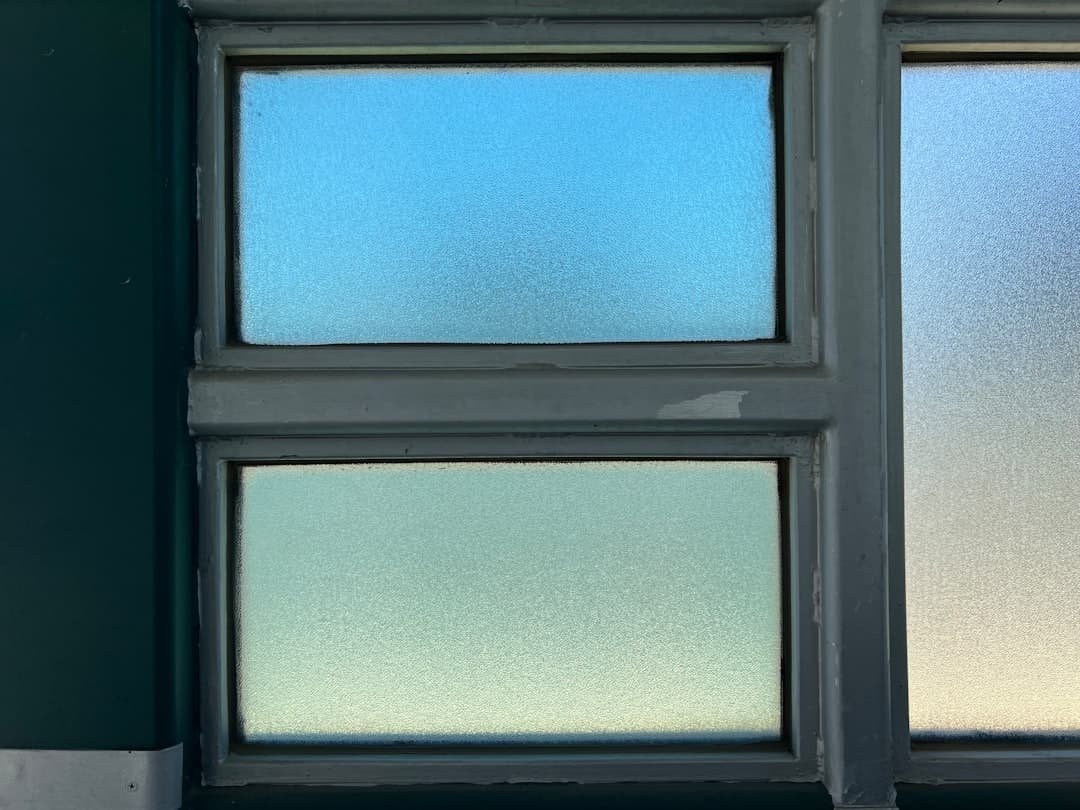
Glassmorphism is a web design style that makes elements look like frosted glass, using a translucent background, a blur applied to whatever sits behind, a thin light border, and a soft shadow. The effect creates a sense of depth and layering, working best for cards, navigation bars, and overlays placed over colorful or image-rich backgrounds.
Glassmorphism rose to prominence as operating systems and design tools leaned into translucent, layered interfaces, and it remains a popular way to add polish and hierarchy to a page. The look is striking, but it carries real risks around readability and performance that separate a refined implementation from a gimmicky one.
This guide explains what makes the glass effect work, the contrast and accessibility rules that keep it usable, where it fits and where it does not, and how to build it in Framer with control over the blur, transparency, and border.
Key takeaways
- The glass effect is built from four ingredients: a translucent fill, a background blur, a subtle light border, and a soft shadow.
- Glassmorphism needs a textured or colorful backdrop. Over a flat solid color it loses the depth that makes it work.
- Readability is the main risk. Always check contrast between text and the blurred background behind the glass panel.
- Use it selectively for cards, headers, and overlays. Covering an entire interface in glass tires the eye and hurts legibility.
- Framer supports backdrop blur and layered fills directly, so you can build and fine-tune the effect without code.
The Four Ingredients of the Glass Effect
Glassmorphism looks complex, but it comes down to four layered properties working together. Get the balance right and the element reads as frosted glass floating above the page. Get it wrong and it looks like a muddy, semi-broken box.
1. Translucent Fill
The panel needs a semi-transparent background, usually white or a light tint at low opacity. This lets the colors behind it bleed through softly, which is the foundation of the glass look. Too opaque and it becomes a normal card; too transparent and the content on top becomes unreadable.
2. Background Blur
A blur applied to whatever sits behind the panel is what sells the frosted effect. The blur softens the background into abstract color, separating the glass layer from the content beneath it. A moderate blur radius reads as glass; an extreme blur erases the background entirely and defeats the layered look.
3. Light Border
A thin, light, slightly transparent border along the edge catches the eye like the rim of a real glass surface. This subtle line gives the panel a crisp edge and reinforces the sense that it is a distinct floating layer.
4. Soft Shadow
A gentle drop shadow lifts the panel off the background and completes the depth illusion. The shadow should be soft and diffuse, never a hard dark line, so the element feels like it is hovering rather than stamped onto the page.
Readability: The Make-or-Break Factor
The defining weakness of glassmorphism is text legibility. Because the background shows through, text on a glass panel competes with whatever color and detail sit behind it. A heading that looks fine over a dark area of the background can become unreadable where the background turns light.
The discipline that protects glassmorphism is the same that governs all readable interfaces, which we cover in depth in our guide to color contrast in web design. Check the contrast between your text and the blurred background at the lightest and darkest points behind the panel. If contrast fails anywhere, increase the fill opacity, darken the panel, or add a subtle solid layer behind the text.
Practical Contrast Tactics
- Increase the panel’s fill opacity until text passes contrast across the whole background.
- Use a darker glass tint with light text when the backdrop is busy and bright.
- Keep blurred backgrounds relatively uniform in brightness behind text-heavy panels.
- Reserve glass panels with small body text for calmer areas of the background.
Where Glassmorphism Fits
Glassmorphism is a seasoning, not the main course. It shines on specific elements and falls apart when applied everywhere. The table below maps common uses to whether the effect tends to help.
| Use case | Fit | Why |
|---|---|---|
| Floating navigation bar over a hero image | Strong | Adds depth while keeping content visible behind it |
| Feature or pricing cards over a gradient | Strong | The colorful backdrop gives the glass something to refract |
| Modal or overlay panels | Good | Separates the overlay from the page beneath it |
| Entire page background | Weak | Nothing behind it to blur, so the effect disappears |
| Dense data tables and forms | Weak | Small text over a blurred backdrop strains readability |
Glassmorphism also pairs well with a deliberate layout. A clear grid keeps glass panels aligned and intentional rather than scattered, which is why it helps to ground the effect in the principles from our guide to grid systems in web design.
Performance Considerations
Background blur is not free. It asks the browser to sample and blur the pixels behind the element on every frame, which can cost performance, especially on mobile devices and when many glass panels stack or animate at once. A handful of static glass cards is fine; a dozen animated, blurred panels can drop the frame rate noticeably.
Keep blur to where it earns its place, avoid animating heavily blurred elements, and test on a mid-range phone rather than only a fast desktop. Framer keeps Core Web Vitals strong by default, but the blur effect is one of the few places where a beautiful detail can quietly cost you smoothness if overused.
Building Glassmorphism in Framer
Framer supports the glass effect directly through layered fills and a backdrop blur setting, so you can build and tune it visually.
Step-by-Step Build
- Place your glass panel over a colorful background, such as a gradient, a photo, or an abstract shape, so there is something for the blur to refract.
- Set the panel’s fill to white or a light tint at a low opacity, around 10 to 20 percent, to create translucency.
- Apply a backdrop blur to the panel so the background behind it softens. Adjust the blur radius until it reads as frosted glass rather than a smear.
- Add a thin border in white at low opacity to catch a light edge along the panel.
- Apply a soft, diffuse drop shadow to lift the panel off the page.
- Add your content, then check the text contrast against the brightest and darkest parts of the background behind the panel.
Refine on Real Backgrounds
Test the panel against the actual background it will sit on, not a placeholder. The effect that looks perfect over one image can fail over another. Adjust opacity and blur until the text stays readable everywhere the panel might appear, including across the breakpoints covered in our responsive web design guide, since a panel that works on desktop can crowd or overlap awkwardly on a phone.
Common Glassmorphism Mistakes
- Using it over a flat color. With no texture behind it, the blur has nothing to refract and the effect vanishes.
- Ignoring contrast. Text that fails contrast over part of the background is the most common and most damaging error.
- Overusing it. A whole interface in glass becomes visually exhausting and hard to read.
- Heavy blur everywhere. Excessive blur erases the background and can hurt performance on mobile.
- Hard shadows. A sharp shadow breaks the floating-glass illusion that soft, diffuse shadows create.
Frequently Asked Questions
What is glassmorphism in web design?
Glassmorphism is a style that makes interface elements look like frosted glass. It combines a translucent background, a blur applied to whatever sits behind the element, a thin light border, and a soft shadow to create depth and layering. It works best on cards, navigation bars, and overlays placed over colorful or image-rich backgrounds.
Is glassmorphism bad for accessibility?
It can be if you ignore contrast. Because the background shows through a glass panel, text can become hard to read where the backdrop turns light or busy. The effect stays accessible when you check text contrast against the brightest and darkest parts of the background and increase fill opacity or darken the panel wherever contrast fails.
When should I avoid glassmorphism?
Avoid it over flat solid backgrounds, where there is nothing for the blur to refract, and on dense content like data tables and small-text forms, where readability suffers. It also strains performance when many blurred panels stack or animate at once, so use it selectively rather than across an entire interface.
Can I create glassmorphism in Framer without code?
Yes. Framer supports the glass effect through layered fills and a backdrop blur setting. You set a low-opacity light fill, apply a backdrop blur, add a thin light border and a soft shadow, then tune the values visually until the panel reads as frosted glass while keeping its text readable, all without custom code.
If you want a site that uses modern effects like glassmorphism with the readability and speed to back them up, Framer Websites designs and builds polished Framer sites end to end. See our pricing or get in touch to begin.