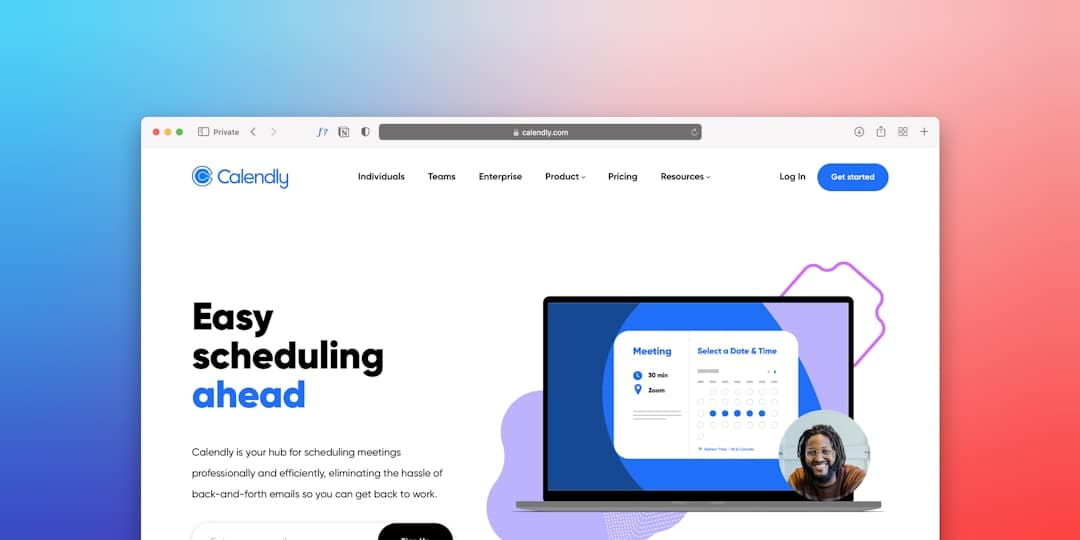
To add Calendly to a Framer site, copy your Calendly scheduling link or inline embed code and paste it into a Framer embed component, or link a button straight to your Calendly URL. Visitors then book a time without leaving your page, and the meeting lands on your calendar automatically.
Key takeaways
- Framer connects to Calendly through an inline embed, a popup widget, or a simple link on a button.
- The inline embed keeps the scheduler on your page, while a popup or link keeps the page lighter.
- No code is required for any of the three methods, so you can launch booking in minutes.
- Match the embed width and your brand colors so the scheduler feels native to your Framer design.
- Use Calendly’s routing and qualification questions to filter and prepare for every booking.
- Always test a real booking and confirm it reaches your calendar before you publish.
Why add Calendly to a Framer site
For consultants, agencies, and sales teams, a booked call is often the goal of the whole page. Calendly removes the back-and-forth of finding a time by letting visitors pick a slot that fits both schedules. When you embed it in Framer, the visitor never has to leave your site to schedule, which keeps momentum high and reduces drop-off.
Framer gives you a fast, beautiful page that builds trust and explains your offer. Calendly turns that interest into a confirmed meeting. Together they form a clean funnel: a visitor reads your page, decides to talk, picks a time, and shows up on your calendar without a single email exchange.
Three ways to embed Calendly in Framer
Calendly offers three embed styles, and each works smoothly in Framer. Choose based on how prominent you want the scheduler to be and how much page weight you can spare.
1. Inline embed
The inline embed places the full Calendly scheduler directly on your page, so visitors see available times immediately. This is the highest-intent option because the calendar is right there with no extra click. It works well on a dedicated contact or book-a-call page where scheduling is the main action.
You get the inline embed code from Calendly, paste it into a Framer embed component, and size it to fit your section. The tradeoff is that an inline scheduler adds some height and loads Calendly’s widget on page load, so reserve it for pages where booking is the priority.
2. Popup widget
The popup widget shows a button or badge that opens the Calendly scheduler in an overlay when clicked. This keeps your page clean and only loads the full scheduler when someone is ready to book. It is a strong choice for homepages or pricing pages where you want a booking option available without dominating the layout.
3. Direct link button
The lightest option is a plain button linked to your Calendly URL. Clicking it sends the visitor to your Calendly page in a new view. This adds almost no weight to your Framer site and is perfect for navigation bars, footers, or secondary calls to action where a full embed would be overkill.
Step by step: inline embed in Framer
Here is the cleanest way to put a live scheduler on a Framer page.
- Set up your event type in Calendly. Create the meeting type you want to offer, set its length, availability, and any buffer time.
- Add qualification questions. In the event settings, add a few short questions so you know who you are meeting before the call.
- Copy the inline embed code. In Calendly, choose the inline embed option and copy the generated snippet, which includes your event link.
- Add an embed component in Framer. Drag an embed or HTML component onto your page and paste the Calendly snippet.
- Size and position it. Set a width that fills your content area and enough height that the scheduler shows without an internal scrollbar.
- Match your brand. Use Calendly’s appearance settings to align the accent color and font with your Framer design.
- Publish and test. Publish the site, book a test slot, and confirm it appears on your connected calendar.
When the test booking lands on your calendar and you receive the confirmation, your scheduler is live and ready for visitors.
Step by step: popup or link
For a lighter setup, use the popup widget or a direct link.
- Choose the embed type in Calendly. Select the popup widget or simply copy your event link for a button.
- For a popup, paste the widget code into a Framer embed component so the badge or button appears on your page.
- For a link, add a Framer button and set its link to your Calendly URL, opening in a new view.
- Style the trigger. Make the button match your brand and stand out as a clear call to action.
- Test the flow. Click through, book a slot, and verify the confirmation and calendar entry.
Getting more from your bookings
Calendly does more than display open times. A few settings turn it into a real qualification tool:
- Qualification questions let you ask for company size, budget range, or the problem they want to solve, so you walk into every call prepared.
- Routing can send different visitors to different event types or team members based on their answers.
- Buffers and limits protect your day by spacing meetings and capping how many you take.
- Reminders reduce no-shows by emailing or texting attendees before the call.
- Calendar connections sync with your existing calendar so you never get double-booked.
Set these up once and every booking from your Framer site arrives qualified, confirmed, and on your calendar.
Design tips for a booking page that converts
The scheduler is only as effective as the page around it. A few patterns help:
Lead with a clear promise of what the call delivers, so the visitor knows the meeting is worth their time. Place the embed or button high on the page where it is easy to find. Add brief social proof, like a short testimonial or a logo strip, near the scheduler to build confidence. Keep the page focused on one action, which is booking, and remove competing links that pull attention away.
Because Framer makes iteration fast, you can test headlines, button copy, and the choice between inline and popup, then keep whatever books the most calls.
Comparing the three embed methods
Each Calendly embed style suits a different page and goal. Weighing them helps you place the scheduler where it converts without slowing the rest of your site.
The inline embed is the highest-intent option because the open times appear immediately. It belongs on a dedicated book-a-call page where scheduling is the single goal. The cost is page height and a heavier load, since the full widget loads with the page. When booking is the whole point of the page, that cost is worth paying.
The popup widget balances visibility and weight. A button or badge sits on your page, and the full scheduler loads only when someone clicks. This keeps homepages and pricing pages clean while still offering a clear path to book. It is the most flexible choice for pages where scheduling is important but not the only action.
The direct link is the lightest. A button sends the visitor to your Calendly page in a new view, adding almost no weight to your Framer site. Use it in navigation bars, footers, and secondary calls to action where a full embed would be excessive. For most sites, a mix works best: an inline embed on the booking page, popups or links elsewhere.
Reducing no-shows and protecting your time
Booking a call is only valuable if the person shows up and the meeting is worth having. Calendly includes several controls that protect both. Automated email and text reminders cut no-shows by nudging attendees before the call, and you can set how many reminders go out and when.
Buffers and daily limits protect your schedule. A buffer adds breathing room between meetings so you are not jumping straight from one call to the next, and a daily cap keeps a busy booking page from swallowing your whole day. Minimum scheduling notice prevents someone from booking a slot two minutes out, giving you time to prepare. Setting these once means every booking from your Framer site respects the boundaries you want.
Connecting Calendly to the rest of your tools
Calendly does not have to stop at the calendar. It can connect to your CRM, video conferencing, and notification tools so a booking triggers everything that should follow. When someone books, Calendly can generate a video meeting link, add the event to your calendar, create or update a contact in your CRM, and notify your team. That turns a single booking into a fully prepared meeting with no manual steps.
Think of the scheduler as one node in a connected system. The Framer page earns the click, Calendly captures the time and the qualifying details, and your other tools handle the meeting logistics. Setting up these connections early means your booking flow scales cleanly as traffic grows, rather than creating more manual work with every new call.
How Calendly fits your Framer stack
Booking is one piece of a connected site. If you also need to collect leads or feed a CRM, that pairs naturally with scheduling, much like the patterns in our broader Framer booking integration guide. If you sell products alongside services, the Framer and Shopify integration guide shows how to add commerce to the same site. And to extend forms, scheduling, and analytics, our roundup of the best Framer plugins highlights tools that build on top of these connections.
Think of Calendly as the conversion step in a larger flow. A visitor reads your page, trusts your offer, and books a call, all without leaving the Framer site you control end to end.
Turn Framer traffic into booked calls
We design fast, focused Framer pages with clean Calendly scheduling so qualified prospects book time without friction.
Frequently Asked Questions
Can I embed Calendly in Framer without code
Yes. Copy the inline or popup embed code from Calendly and paste it into a Framer embed component, or link a button to your Calendly URL. No custom code is required for any of these methods.
Should I use an inline embed or a popup
Use an inline embed on a dedicated booking page where scheduling is the main goal, since it shows times immediately. Use a popup or link on homepages and pricing pages to keep the layout clean and the page light.
Will the Calendly embed slow down my Framer site
An inline embed loads the full scheduler on page load, which adds some weight. A popup or direct link loads the scheduler only when a visitor clicks, keeping the rest of your Framer page fast.
How do I make sure bookings reach my calendar
Connect Calendly to your calendar in its settings, then book a test slot from your published Framer site. Confirm the event appears on your calendar and that you receive the confirmation before going live.