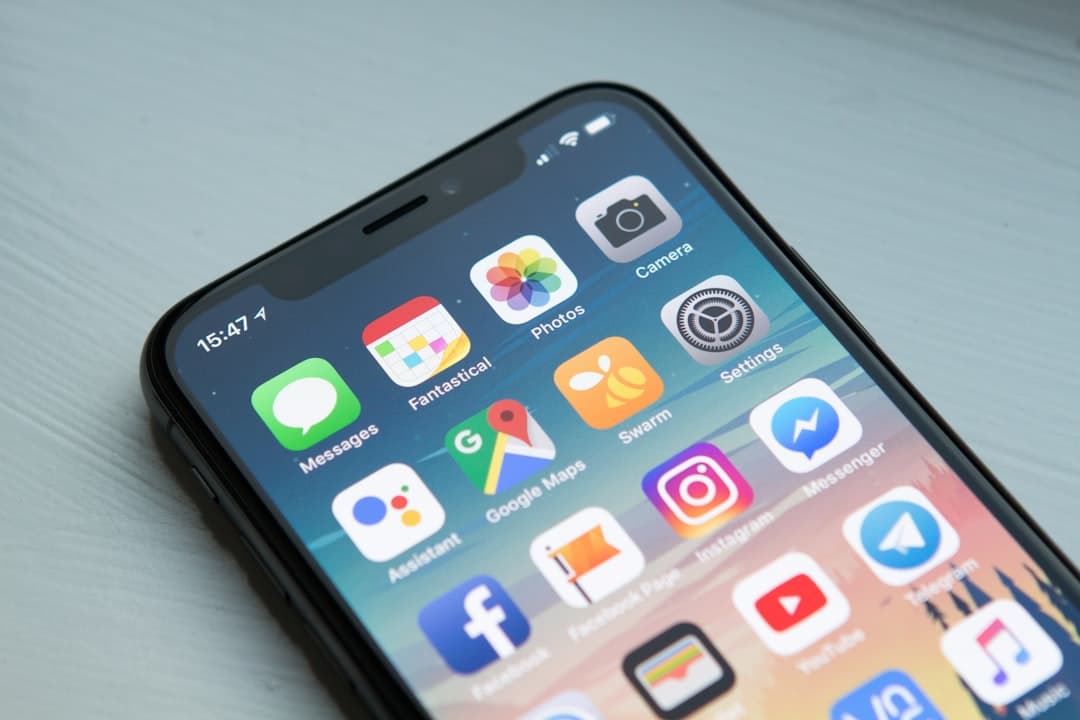
A progressive web app (PWA) is a website that behaves like a native app. It installs to the home screen, works offline through a service worker, loads instantly from a cache, and can send push notifications, all delivered over the web with no app store involved. PWAs combine the reach of a URL with the feel of installed software.
For founders and marketers comparing how to ship a fast, installable experience without maintaining separate iOS and Android codebases, PWAs are a practical middle path. They run on the same web stack you already use for marketing pages, and a single deploy serves every device.
This guide explains what a PWA actually requires, how the pieces fit together, where PWAs win and lose against native apps, and how the design and performance decisions you make on a marketing site carry straight into a great installable experience.
Key takeaways
- A true PWA needs three things: HTTPS, a web app manifest, and a registered service worker.
- Service workers handle offline caching and background sync, which is what makes a PWA feel instant on repeat visits.
- PWAs install from the browser with no app store review, so updates ship the moment you deploy.
- Core Web Vitals scores directly shape how installable and usable a PWA feels, so performance work pays double.
- PWAs suit content, commerce, and tool-style products. Hardware-heavy apps still favor native.
What makes a website a progressive web app
A PWA is not a single technology. It is a set of browser standards layered on top of a normal website. When three baseline requirements are met, a browser will treat the site as installable and unlock app-like behavior.
The three baseline requirements
- Served over HTTPS. Service workers and most PWA APIs only run on secure origins. A valid TLS certificate is mandatory.
- A web app manifest. A JSON file (usually manifest.webmanifest) that declares the app name, icons, theme color, start URL, and display mode. This is what lets the browser show an install prompt and render a standalone window without browser chrome.
- A registered service worker. A JavaScript file the browser runs in the background, separate from the page, to intercept network requests and serve cached responses. This is the engine behind offline support and instant repeat loads.
What a manifest looks like in practice
A minimal manifest declares enough for the browser to install the app. It names the app, points to icon files at common sizes (192 pixels and 512 pixels are the practical baseline), sets a start URL, and chooses a display mode of standalone so the app opens without the address bar. The theme color and background color control the splash screen and the system bars, which is where a PWA starts to feel less like a tab and more like software.
How service workers actually work
The service worker is the part most people misunderstand. It is a script that sits between your pages and the network. Once registered, it can answer requests from a local cache, fall back to the network when the cache misses, and update content quietly in the background.
The service worker lifecycle
A service worker moves through three phases: register, install, and activate. On the install event you typically pre-cache the core shell of your app, the HTML, CSS, and JavaScript needed to render the first screen. On activate you clean up old caches from previous versions. After activation, the fetch event lets you decide, request by request, whether to serve from cache or hit the network.
Common caching strategies
| Strategy | How it behaves | Best for |
|---|---|---|
| Cache first | Serve from cache, only hit network on a miss | Fonts, logos, the app shell |
| Network first | Try network, fall back to cache offline | Frequently updated content, pricing data |
| Stale while revalidate | Serve cache instantly, refresh in background | Article lists, product feeds |
| Network only | Always hit network, never cache | Checkout, authentication, analytics calls |
The right mix depends on the page. A marketing landing page can lean cache first for speed, while a checkout step should stay network only so a customer never acts on stale data.
PWA versus native app: an honest comparison
PWAs are not a universal replacement for native apps. They win on reach, cost, and update speed. Native apps win on deep device integration and on certain platform features that browsers still restrict.
Where PWAs win
- One codebase, every device. A PWA runs on iOS, Android, and desktop from the same deployment.
- No app store gatekeeping. There is no review queue and no 15 to 30 percent platform commission on web payments.
- Instant updates. When you deploy, the next visit gets the new version. No user has to update from an app store.
- Linkable and indexable. Every screen has a URL, so Google can crawl it and you can share deep links.
Where native still leads
- Deep hardware access. Bluetooth, advanced camera controls, and background location are stronger on native.
- iOS push and install friction. Apple supports web push and installation, but the prompts are less prominent than on Android.
- App store discovery. Some audiences still search the App Store and Google Play first.
Performance is the foundation of a good PWA
Installability is the easy part. The harder part is making the installed experience feel fast every time. That work lives in the same place as your marketing site speed: the loading, interactivity, and layout metrics Google tracks as Core Web Vitals.
The metrics that matter
Largest Contentful Paint should land under 2.5 seconds, Interaction to Next Paint should stay under 200 milliseconds, and Cumulative Layout Shift should sit below 0.1. A service worker that pre-caches the app shell helps LCP dramatically on repeat visits, because the first paint comes from local storage rather than the network. For a full breakdown of how these scores are measured and improved, our complete guide to Core Web Vitals walks through each metric with concrete fixes.
Why performance and ranking are linked
The same speed work that makes a PWA feel native also improves search visibility, because Google uses these signals as a ranking input. We cover that connection in detail in our breakdown of how Core Web Vitals affect SEO, and the short version is that a fast PWA tends to rank better and convert better at the same time.
Design decisions that carry into the app experience
A PWA inherits its look and feel from the website it is built on. Two design choices matter more than most when the experience runs full screen with no browser chrome to lean on.
Contrast and legibility in standalone mode
When a PWA opens in standalone display mode, your interface fills the entire screen, including the areas usually framed by browser UI. Text contrast becomes more noticeable in that context, especially outdoors on mobile. Meeting the WCAG contrast ratios keeps the app readable in every lighting condition, and our guide to color contrast in web design covers the exact ratios to target.
Install prompts and the home screen icon
The manifest icon is the app’s face on the home screen, so it should be a clean, recognizable mark at 192 and 512 pixels, not a shrunken logo with text. The install moment is also a design opportunity: a small custom prompt that explains the benefit of installing converts far better than relying on the browser’s silent default.
How to ship a PWA, step by step
- Confirm HTTPS. Verify your domain serves over a valid certificate. Check that DNS and SSL are configured correctly before anything else.
- Add the manifest. Create manifest.webmanifest with name, icons, start URL, display mode, and theme colors, then link it in the document head.
- Register a service worker. Add a small registration script and a service worker file that pre-caches the app shell.
- Choose caching strategies per route. Cache first for static assets, network first for dynamic content, network only for checkout.
- Test installability. Use the browser developer tools application panel and a Lighthouse PWA audit to confirm the install criteria pass.
- Measure performance. Run PageSpeed and Lighthouse, fix the worst Core Web Vitals offenders, and retest.
Where DNS and HTTPS fit
Because HTTPS is a hard requirement, the domain setup underneath your site has to be correct first. If you are configuring a custom domain, certificates, or subdomains for an app, our DNS guide for web designers explains how to wire records so HTTPS resolves cleanly and your service worker can register.
Push notifications and re-engagement
One of the features that makes a PWA feel like real software is the ability to send push notifications, even when the browser is closed. Used well, push brings users back. Used carelessly, it gets your notifications disabled and your app uninstalled.
How web push works
Web push runs through the same service worker that powers offline caching. After a user grants permission, your server can send a message that the service worker receives and displays as a system notification. Android has supported this broadly for years, and iOS now supports it for PWAs installed to the home screen, which closes much of the old gap with native apps.
Earn the permission before asking
The fastest way to lose a user is to fire a permission prompt the moment they land. Wait until they have taken a meaningful action and seen value, then ask, and explain what they will get. A notification strategy tied to genuine events, an order shipped, a reply received, a price dropped, keeps opt-in rates high and uninstalls low.
When a PWA is the right call
Choosing a PWA is a product decision, not just a technical one. The model fits some products beautifully and fights others.
Strong fits
- Content and media sites that benefit from instant repeat loads and offline reading.
- Commerce where avoiding app store friction and commissions matters and the funnel lives on the web anyway.
- Tools and dashboards that users return to often and would like on the home screen without an install download.
- Marketing sites with an app-like layer where a single build serves discovery, conversion, and retention.
Weaker fits
Products that lean heavily on background processing, deep hardware integration, or App Store and Google Play discovery as a primary acquisition channel still tend to favor native or a hybrid approach. The honest answer is that many businesses get most of the benefit from a fast, installable PWA and only a minority truly need native, so the default worth testing first is the web.
Frequently Asked Questions
Do progressive web apps work on iPhone?
Yes. iOS supports installing PWAs to the home screen through Safari, and recent versions support web push notifications for installed PWAs. The experience is solid, though the install prompt is less prominent than on Android, so it helps to add an in-page hint explaining how to add the app to the home screen.
Is a PWA cheaper than building a native app?
In most cases, yes. A PWA uses one web codebase that serves every platform, which removes the cost of maintaining separate iOS and Android apps and avoids app store commissions on web payments. For content, commerce, and tool-style products, the savings are significant. Hardware-heavy products may still justify native development.
Will a PWA hurt my SEO?
No, a well-built PWA helps SEO. Every screen has a real URL that Google can crawl, and the performance work required for a good PWA improves Core Web Vitals, which are ranking signals. The key is to render meaningful content without depending entirely on client-side JavaScript, so crawlers see the content on first load.
Build your installable web experience with Framer Websites
If you want a fast, installable site that doubles as a polished web app, Framer Websites designs and builds production sites in Framer with performance and Core Web Vitals baked in from the first frame. Tell us what you are building on our contact page and we will map the right approach for your product.