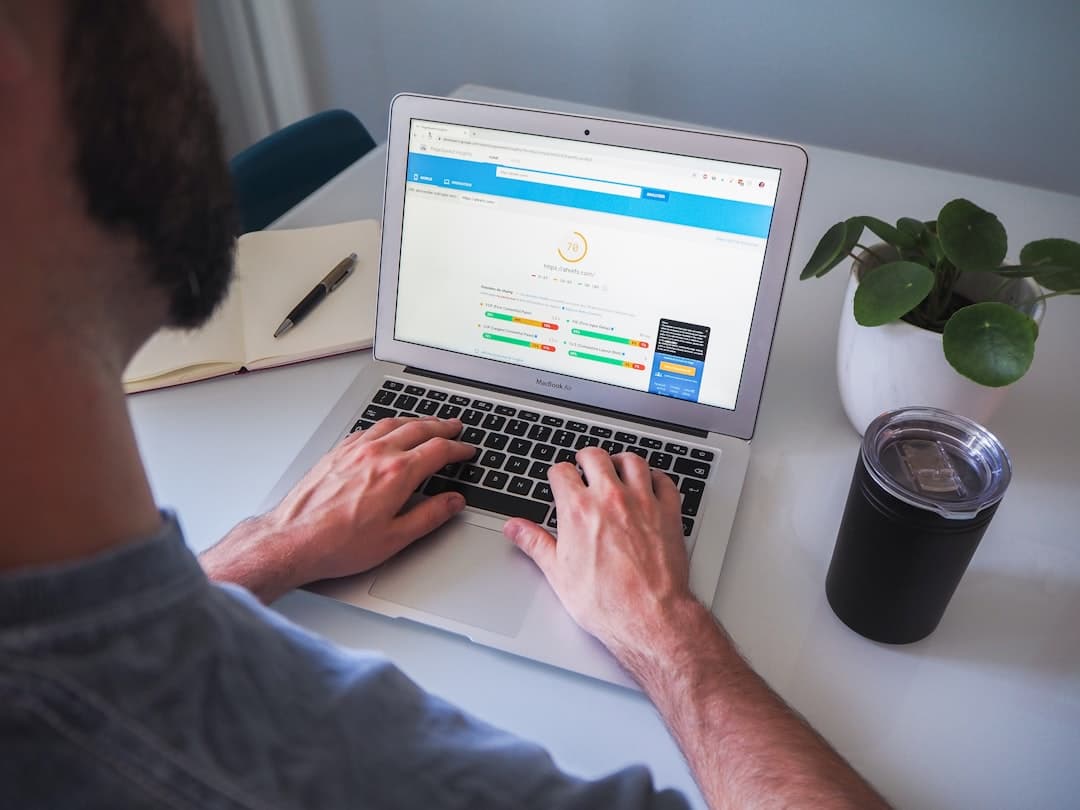
Largest Contentful Paint (LCP) is a Core Web Vitals metric that measures when the largest visible element on a page finishes rendering. Google rates LCP under 2.5 seconds as good, 2.5 to 4 seconds as needs improvement, and over 4 seconds as poor. Common fixes include image optimization, preloading critical assets, faster hosting, and aggressive caching with a CDN.
What Largest Contentful Paint Actually Measures
LCP is the moment a visitor sees the main content of a page. Not the first pixel — that is First Contentful Paint, a different metric. Not the moment everything has loaded — that is fully loaded time, also a different metric. LCP is specifically about the largest piece of content visible inside the viewport: usually a hero image, a heading block, or a video poster.
If a visitor opens a marketing page and stares at a blank white screen for four seconds, LCP is bad. If the page renders text instantly but the hero image takes six seconds to appear, LCP is bad. If everything renders in under two seconds, LCP is good. The metric is intentionally aligned with the moment a visitor feels the page has loaded, not the moment a network monitor stops counting bytes.
LCP became a Google ranking signal in 2021 as part of the Core Web Vitals update. It is one of three vitals (LCP, CLS, INP) that affect search ranking, especially on mobile. The full Core Web Vitals guide covers how the three metrics interact.
What Counts as the LCP Element
Google’s algorithm picks the LCP element from a defined list: images (including img, image inside svg, video poster frames, and CSS background images loaded via url()), block-level text elements, and certain video elements. Elements outside the viewport do not count. Elements with low opacity or hidden display do not count. Elements with negative margins that push them off-screen do not count.
The LCP element is reassessed as the page loads. The first text block to render might briefly be the LCP element, then a hero image loads and replaces it. The final LCP value is whichever element holds the title at the moment the page becomes interactive.
Open Chrome DevTools, switch to the Performance tab, record a load, and look for the “LCP” marker. The element highlighted is the one Google measures. If it is not what you expect, that is your first clue something is structurally off.
Common Causes of Slow LCP
Slow Server Response (TTFB)
If the server takes 1.2 seconds to send the first byte, you have already burned half the LCP budget before any rendering happens. Time to First Byte is the foundation LCP sits on. Slow hosting, heavy backend processing, slow database queries, and missing CDN configuration all manifest as bad TTFB and, downstream, bad LCP. The website speed optimization guide covers TTFB diagnosis in depth.
Heavy Hero Images
A 4 MB hero image is the most common cause of bad LCP on marketing sites. The image is the LCP element by definition (largest content), and a multi-megabyte file takes seconds to download even on fast connections. Modern image formats (WebP, AVIF), responsive image sizing, and aggressive compression usually cut LCP by half or more.
Render-Blocking Resources
CSS and JavaScript files in the document head block rendering. The browser cannot paint until those resources download and parse. Large CSS bundles, third-party scripts loaded synchronously, and Google Fonts requested without optimization all hurt LCP.
Client-Side Rendering Without Hydration
Single-page applications that render content with JavaScript suffer LCP problems by design. The HTML response is empty (or near-empty), the browser downloads the JS bundle, executes it, fetches data, and only then paints content. LCP routinely lands in the 4 to 8 second range on such setups. Server-side rendering or static site generation is the standard fix.
Web Fonts Without font-display
If your LCP element is a heading and the heading uses a custom web font, the browser waits for the font file before rendering text. With no font-display directive, that wait can be three or four seconds. Adding font-display: swap to the @font-face rule lets the browser show fallback text immediately and swap when the custom font loads. The website typography guide covers font loading strategy.
How to Measure LCP
PageSpeed Insights
The fastest way to check LCP is PageSpeed Insights at pagespeed.web.dev. Paste a URL, get a report. The report shows lab data (a synthetic load Google ran on demand) and field data (real user metrics from Chrome users in the last 28 days). Field data is what Google uses for ranking; lab data is what you debug against.
Chrome DevTools Lighthouse
Lighthouse, built into Chrome DevTools, runs the same checks as PageSpeed Insights against your local browser. Useful when you are testing changes against a staging site that PageSpeed Insights cannot reach. Run with the “Mobile” preset and “Throttling” enabled — desktop numbers without throttling will lie to you.
Real User Monitoring
Lab data has limits. The real users on your site span every device, every connection speed, every region. Google Search Console’s Core Web Vitals report shows aggregated field data from real Chrome users, broken down by URL group. Tools like SpeedCurve and Calibre offer richer real-user monitoring with per-page detail.
Web Vitals Library
For developers, Google’s web-vitals JavaScript library lets you collect LCP measurements from real users and send them to your analytics platform. Useful when you want to track LCP changes alongside business metrics like conversion rate.
Fixes That Move the Needle
Optimize the Hero Image
Three steps. First, serve modern formats: WebP for broad compatibility, AVIF for additional savings on supporting browsers. Use the picture element with multiple sources so each browser gets the best format it understands. Second, generate responsive image sizes — a phone does not need a 2400-pixel-wide image. Use srcset with multiple widths. Third, compress aggressively. Photographs at 80% quality are visually indistinguishable from 100% quality and weigh half as much.
Preload the LCP Image
If the LCP image is reliable across page loads (most marketing pages), add a preload link in the document head: <link rel="preload" as="image" href="/hero.webp">. The browser starts downloading the image before it reaches the body of the HTML. Combine with high fetchpriority (fetchpriority="high") on the image tag itself. Both together can shave 500ms or more from LCP.
Use a CDN
A content delivery network caches assets at edge locations near visitors. Cloudflare, Fastly, Bunny, and the CDNs built into Vercel, Netlify, and Framer all serve images, CSS, and JS from a server geographically close to the user. A visitor in Tokyo loads from Tokyo, not from your origin server in Virginia. This affects TTFB directly, which affects LCP.
Defer Non-Critical JavaScript
Third-party scripts (analytics, chat widgets, A/B testing tools, social embeds) often dominate the bundle. Use the async or defer attribute so they do not block rendering. For heavy widgets, lazy-load them only after the LCP element has rendered. The image optimization guide covers complementary techniques for the image side of the equation.
Use font-display: swap
Add font-display: swap to every custom @font-face declaration. The browser will show fallback fonts immediately and swap to the custom font when it loads. For Google Fonts, append &display=swap to the import URL.
Server-Side Render or Statically Generate
If your site is a single-page application, the most impactful LCP improvement is moving to server-side rendering or static generation. Next.js, Remix, Nuxt, Astro, and Framer’s static export all produce HTML that contains the LCP content on first byte. The browser does not wait on JavaScript to see the page.
LCP on Framer Sites
Framer ships with several LCP optimizations on by default. Images load with responsive srcsets in modern formats. Critical CSS is inlined. The CDN is built into the platform. Most Framer sites land in the “good” LCP range without manual tuning.
Where Framer sites slow down: oversized hero images uploaded at full resolution, heavy custom code components, and third-party embeds (chat widgets, analytics) added without lazy loading. The Framer vs Webflow comparison covers performance differences in detail.
Targets and Trade-Offs
Google’s LCP thresholds are 2.5 seconds (good) and 4 seconds (poor). The 75th percentile across all visits is what counts — meaning if 75% of your visitors experience under 2.5 seconds, you pass.
For most marketing sites, hitting under 2 seconds is achievable. Sub-1.5 second LCP is achievable on static sites with strong infrastructure. Below 1 second is the territory of news sites, search engines, and the most performance-obsessed teams.
The trade-off is real. Aggressive performance optimization sometimes conflicts with rich, image-heavy designs. The right balance depends on the audience and the conversion goal — for a SaaS landing page, fast and functional almost always wins. For a fashion brand, slower load times that preserve visual richness are sometimes acceptable.
Frequently Asked Questions
What is a good LCP score?
Under 2.5 seconds is rated good by Google. Between 2.5 and 4 seconds needs improvement. Over 4 seconds is poor and likely affects search ranking. The measurement is the 75th percentile across real Chrome users in the last 28 days.
How do I find the LCP element on my page?
Open Chrome DevTools, switch to the Performance tab, record a page load, and look for the LCP marker in the timeline. The element highlighted is the one Google measures. PageSpeed Insights also surfaces the LCP element in its diagnostics section.
Does LCP affect SEO?
Yes. LCP is one of three Core Web Vitals (along with CLS and INP) that Google uses as a ranking signal, especially for mobile search. The impact is moderate but real, and it compounds with other ranking factors. A site with good LCP, CLS, and INP has a measurable advantage over a slower competitor with otherwise similar content.
Why is my LCP fine on desktop but bad on mobile?
Mobile devices have slower CPUs and slower connections than desktops. The same JavaScript bundle that runs in 200ms on a laptop might take 1.2 seconds on a mid-range Android phone. Mobile LCP problems are usually caused by render-blocking JavaScript, oversized images served at desktop resolution, or web fonts loaded without optimization. Test with PageSpeed Insights’ mobile preset; the desktop preset will hide the problem.