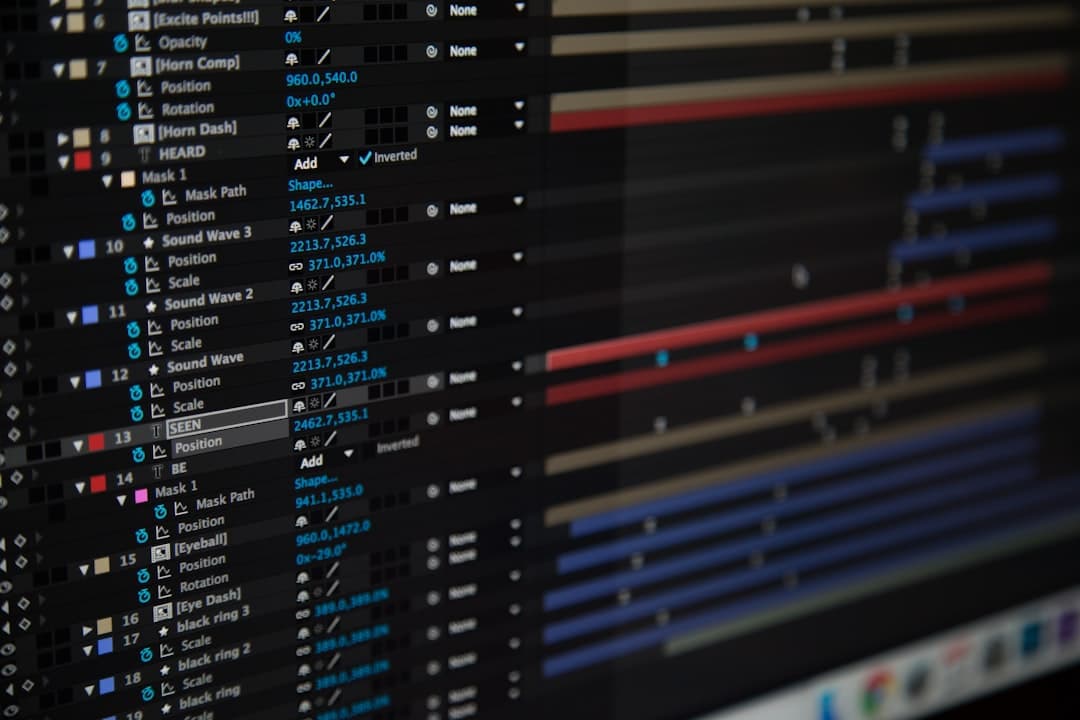
Framer scroll animations are effects that trigger as a visitor scrolls down a page, including fade-ins, parallax movement, sticky sections, and progress-linked transforms. You build them with Framer scroll effects and the appear animation panel, no code required, then tune timing and easing for a smooth, intentional result.
Key Takeaways
- Framer offers two main scroll tools: appear animations that trigger once on entry, and scroll effects linked to scroll position.
- Parallax and sticky sections are built directly in the editor without writing JavaScript.
- Restraint matters more than variety. A few well-timed effects beat motion on every element.
- Scroll animations should respect reduced-motion settings and stay fast on mobile.
- Good easing and short durations are what separate a polished site from a distracting one.
Understanding Scroll Animation in Framer
Scroll animation covers any motion tied to the act of scrolling. In Framer, it falls into two broad categories, and knowing the difference saves you a lot of trial and error.
The first is the appear animation. It triggers once, when an element enters the viewport. A card fades up, a heading slides in, an image scales to full size. The animation plays and then the element sits still. This is the workhorse of most marketing sites.
The second is the scroll effect, also called a scroll transform. Here the animation is linked directly to scroll position. As you scroll, the element moves, fades, rotates, or scales in proportion to how far the page has traveled. Parallax backgrounds and progress bars are built this way.
Both run in Framer without code. If you want the full picture of motion in Framer, our complete Framer animations guide covers transitions, variants, and interactions alongside scroll.
Building Appear Animations on Scroll
Appear animations are the fastest way to add life to a page. Select any layer, open the animation options in the right panel, and choose an appear effect. Framer gives you presets like fade, slide, and scale, plus full control over distance, duration, and delay.
Setting Timing and Easing
The default duration is often too slow. For most entrance effects, 0.4 to 0.6 seconds feels responsive without being abrupt. Pair that with an ease-out curve so the element decelerates as it settles, which reads as natural to the human eye.
Delay is what makes a section feel choreographed. If a row has four cards, stagger their delays by about 0.08 to 0.12 seconds each. The cards cascade in instead of snapping in together, and the effect feels deliberate rather than mechanical.
Choosing What to Animate
Animate structural blocks, not every text line. Section headings, image groups, and card rows are good candidates. Body paragraphs and navigation should usually stay static. Over-animating slows the perceived speed of your site and tires the reader.
Creating Parallax Effects
Parallax is the effect where background and foreground layers move at different speeds, creating a sense of depth. In Framer, you build it with scroll effects on the position property.
Select a background image or shape, add a scroll transform, and set its vertical position to change as the page scrolls. If the background moves slower than the content in front of it, you get a classic parallax depth effect. Keep the offset subtle. A movement of 40 to 80 pixels across a full section is usually enough. Large offsets look gimmicky and can cause layout gaps.
Layered Parallax
For richer scenes, stack three layers and give each a different scroll speed: a slow background, a medium midground, and content that moves at normal speed. This is effective on hero sections and storytelling pages. Test it on a real device, because heavy layered parallax can feel sluggish on older phones.
Working With Sticky Sections
Sticky scroll is one of the most powerful patterns in modern web design. An element pins to the viewport while the rest of the page scrolls past it, then releases. Framer supports this with the sticky position setting on a section or layer.
A common use is a pinned visual on one side while text scrolls on the other, often called a scrollytelling layout. Another is a sticky image that swaps as the reader moves through feature descriptions. To build it, place your content in a tall container, set the visual element to sticky, and define where it pins and unpins.
Sticky sections work well for product walkthroughs, process explanations, and feature comparisons. They give you a controlled stage where motion and reading happen together. Used on a landing page, they can lift engagement noticeably, as covered in our Framer landing page guide.
Scroll-Linked Transforms and Progress
Scroll effects can drive more than position. You can link opacity, scale, rotation, and blur to scroll progress. A few practical examples make this concrete.
- An image that scales from 90 percent to 100 percent as it enters, giving a gentle zoom.
- A heading that fades from full opacity to transparent as it scrolls out of view, so old content recedes cleanly.
- A sticky progress bar at the top of an article that fills as the reader moves down the page.
- A subtle rotation on a decorative shape that turns slowly with the scroll for visual interest.
The key with scroll-linked transforms is to keep the mapping gentle. A property that changes too dramatically over a short scroll distance feels jumpy. Spread the change across a generous range of scroll travel.
Performance and Accessibility
Scroll animations are cheap to add and easy to overdo. A page heavy with motion can stutter, especially on mid-range phones. Three habits keep things smooth.
Animate the Right Properties
Stick to transform properties like position, scale, and rotation, plus opacity. These are GPU-friendly and animate smoothly. Avoid animating layout properties such as width, height, or margin on scroll, because they force expensive recalculations.
Respect Reduced Motion
Some visitors enable a reduced-motion setting at the operating system level, often because motion causes discomfort. Design your site so it still reads clearly with animations dialed down. Critical content must never depend on an animation to become visible.
Test on Mobile
Always preview scroll effects on an actual phone, not just the desktop canvas. Reduce or remove parallax on small screens if it feels heavy. Mobile users scroll fast, and motion that looks elegant on desktop can feel busy on a small display. For broader speed tips, see our notes on website speed optimization.
A Practical Workflow for Scroll Animation
The best results come from a deliberate process rather than adding effects at random. Start by designing the page completely static, with no motion at all. Confirm the layout, hierarchy, and content all work on their own.
Then add appear animations to the main structural blocks, one section at a time. Preview after each section. Next, add one or two scroll effects where they genuinely add depth, such as a hero parallax or a sticky feature section. Finally, review the whole page top to bottom on desktop and mobile, and remove anything that does not earn its place.
This static-first approach keeps motion in service of the content. A site where every effect has a reason feels confident and professional. A site where everything moves feels noisy and slow.
Want scroll animations that feel polished instead of distracting? Our team designs and builds Framer websites with motion that supports your message. Review options on our pricing page or contact us to start your project.
Frequently Asked Questions
Do Framer scroll animations require code?
No. Framer provides appear animations and scroll effects directly in the editor. You can build fades, parallax, sticky sections, and scroll-linked transforms without writing any JavaScript.
Will scroll animations slow down my Framer site?
They can if overused. Stick to transform and opacity properties, keep parallax offsets small, and test on mobile. Used in moderation, scroll animations have a minimal impact on performance.
What is the difference between an appear animation and a scroll effect?
An appear animation triggers once when an element enters the viewport. A scroll effect is linked to scroll position, so the element moves or transforms continuously as the visitor scrolls.
How do I make scroll animations accessible?
Respect the reduced-motion setting, never hide essential content behind an animation, and keep effects gentle. Visitors who prefer less motion should still be able to read and use every part of the page.