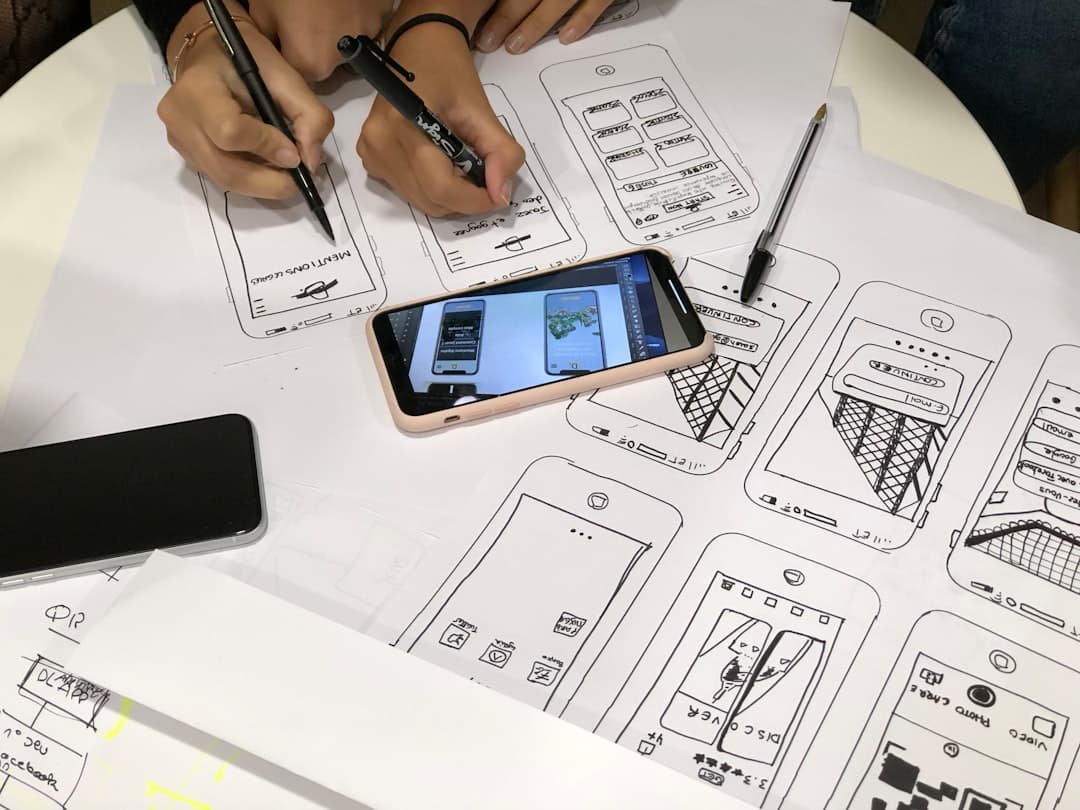
Framer mobile optimization is the process of tuning your site so it loads quickly, looks polished, and behaves naturally on phones and tablets. It covers responsive breakpoints, touch targets, image delivery, animation performance, and content prioritization, all driven from the same project that ships your desktop experience.
Why Mobile Optimization Matters
More than half of all web traffic now arrives from mobile devices. For consumer brands and content sites, the share is closer to 70 percent. Search engines rank mobile experience as a primary ranking factor, and Core Web Vitals are measured on mobile by default in most reports. A site that looks great on desktop but stumbles on mobile is bleeding traffic, conversions, and search visibility every day.
Framer makes mobile optimization tractable by treating every breakpoint as a first-class design surface rather than an afterthought. You design desktop, tablet, and mobile together, with shared content and structure but breakpoint-specific layouts, typography, and spacing. The result is a single project producing three distinct experiences.
Breakpoints in Framer
Framer ships with three default breakpoints: desktop (1200px and up), tablet (810px to 1199px), and mobile (under 810px). You can add more breakpoints for finer control, like a large desktop above 1440px or a small mobile under 360px, but most sites work fine with the defaults.
Each breakpoint maintains the same layer hierarchy but allows independent values for size, position, typography, spacing, and visibility. Change a heading from 48px on desktop to 32px on mobile, and the layer stays the same layer with a breakpoint-specific override. This avoids the duplication trap where mobile becomes a separate site to maintain.
For a full deep dive, see our framer breakpoints guide.
Mobile-First or Desktop-First
Framer supports both workflows. Mobile-first means designing the smallest breakpoint first and progressively enhancing as the viewport grows. Desktop-first means starting with the most spacious layout and adapting downward. Each has tradeoffs.
Mobile-first forces content prioritization early because the small screen forbids visual clutter. The discipline produces leaner final designs. Desktop-first feels natural to designers from print or larger-screen backgrounds but tends to produce mobile pages that look like compressed desktop.
For most marketing sites, desktop-first is faster to draft and mobile-first is more rigorous. Use mobile-first when conversions matter more than visual ambition. See our mobile-first design guide for the full philosophy.
Touch Targets and Tap Sizes
Mobile interactions happen with fingers, not pointer-precise cursors. Apple recommends a minimum tap target of 44×44 points. Google recommends 48×48 dp. Anything smaller invites mis-taps and frustration. Audit every interactive element on mobile breakpoints and ensure each has adequate tap area, including spacing around buttons so adjacent elements do not get hit accidentally.
Beyond size, consider thumb reach. Important actions belong in the bottom third of the screen where thumbs can reach without hand contortion. Top-of-screen navigation works on desktop but feels awkward on phones. Modern mobile interfaces increasingly move primary actions to a bottom bar.
Typography on Mobile
Desktop typography rarely transfers cleanly to mobile. A 64px hero headline becomes overwhelming on a 360px screen. A 16px body paragraph that reads fine on desktop can feel cramped at the same size on mobile because mobile reading distance is shorter and lighting is more variable.
Typical mobile adjustments include reducing hero headlines by 35 to 50 percent, increasing body text to 17px or 18px for comfort, and tightening line height to 1.4 or 1.5 to avoid airy gaps that fragment paragraphs. Test on real devices, not just browser dev tools, because actual reading conditions differ from desktop simulations.
Image Optimization
Images are the largest performance cost on most sites. Framer automatically generates responsive image variants and serves the right size for each viewport, which solves a major part of the problem. But you still need to provide adequately sized source images: a 4000px wide hero photograph delivers no benefit over a 1600px version and costs your visitors bandwidth.
Use WebP or AVIF formats where possible. Framer handles format negotiation based on browser support, so providing modern formats reduces file sizes by 25 to 40 percent compared to JPEG. For galleries with many images, consider lazy-loading anything below the fold so initial page load stays fast.
For full performance guidance, see our website speed optimization guide.
Animations and Effects on Mobile
Mobile devices have less GPU headroom than desktops, and visitors are often on cellular networks where every wasted CPU cycle costs battery and data. Heavy animations that look great on desktop can stutter on mobile, breaking the polished feel they were meant to create.
Audit animations per breakpoint. Background blur is expensive on mobile, so consider disabling it under tablet breakpoint. Parallax scroll effects often feel jarring on mobile, so reduce intensity or disable. Long entrance animations on every section make mobile scroll feel sluggish, so trim to the few moments that matter.
Core Web Vitals on Mobile
Google measures three Core Web Vitals on mobile: Largest Contentful Paint, Interaction to Next Paint, and Cumulative Layout Shift. Each has a specific threshold below which Google considers the page to fail. Framer projects pass these thresholds by default if you respect a few practices.
- LCP under 2.5 seconds. The hero image or headline must render in under two and a half seconds. Compress hero images, use modern formats, and avoid full-screen video as a hero on mobile.
- INP under 200 milliseconds. Tap responsiveness must be near instant. Heavy JavaScript on tap, including animation-on-scroll listeners, can blow this budget. Audit interactive components on mobile profile.
- CLS under 0.1. Content must not shift after initial render. Reserve space for images by setting explicit aspect ratios, and avoid late-loading fonts that re-flow paragraphs after they are already visible.
Mobile Accessibility Considerations
Mobile accessibility goes beyond touch targets. The same WCAG rules apply on mobile, with a few extra considerations that desktop interfaces ignore.
- Respect dynamic type. iOS and Android both let users scale system text. Use rem or em units for typography so the user’s preference is respected, rather than locking pixel sizes that ignore accessibility settings.
- Maintain color contrast in sunlight. Outdoor reading conditions reduce effective contrast. Aim higher than the minimum 4.5:1 ratio for body text, particularly on mobile-only views.
- Test with screen readers on mobile. VoiceOver on iOS and TalkBack on Android behave differently from desktop screen readers. Walk through your site with both at least once.
- Keyboard support on hardware keyboards. Many mobile users pair Bluetooth keyboards. Tab order, focus indicators, and skip links should all work as they do on desktop.
- Avoid hover-only interactions. Anything that depends on hover is invisible on touch devices. Mirror hover states with focus or tap states.
Forms on Mobile
Forms are where mobile optimization makes the biggest conversion impact. A form that works fine on desktop can be torture on mobile if input fields are too small, keyboards cover the submit button, or autocomplete is not configured properly.
Set input types correctly. Email fields should declare email as the input type so mobile keyboards show the @ key. Phone fields should declare tel so visitors see a number pad. Date fields should use date so the native picker appears. These small adjustments compound into measurable conversion lifts.
For more on forms, see our framer forms guide.
Navigation Patterns
Desktop navigation menus rarely work on mobile. The standard mobile pattern is a hamburger icon that opens a full-screen overlay menu, with the most important navigation items also pinned to a bottom bar for quick access. Framer makes both patterns straightforward through components and variants.
For long sites with deep navigation, consider a sticky scroll-back-to-top button on mobile. The pattern signals respect for the visitor and reduces friction on long pages.
Testing on Real Devices
Browser dev tools approximate mobile experience but miss subtle issues. Real devices have variable display density, touch responsiveness quirks, system font rendering differences, and battery-affected performance throttling. Test on at least one iOS device and one Android device, ideally older models that represent the lower end of your audience capability.
Use the Framer preview QR code to load the current draft on a real phone, then walk through every page. You will find issues that no desktop preview ever surfaces.
Mobile Comparison with Other Platforms
Framer mobile optimization compares strongly to Webflow, Squarespace, Wix, and WordPress. Webflow offers similar breakpoint-based responsive controls but with more manual responsive image setup. Squarespace and Wix simplify mobile but limit customization, often producing mobile views that match desktop too closely. WordPress mobile experience depends entirely on the theme, with quality varying wildly. Shopify themes vary similarly but tend toward strong mobile defaults because mobile conversion drives storefront revenue.
Designing Mobile Hero Sections That Convert
The mobile hero is the single most important section on the site for first impressions. It loads first, occupies the entire above-the-fold space, and decides whether the visitor scrolls or bounces. Most mobile heroes fail in the same predictable ways.
- Lead with one clear headline. Two lines maximum. The desktop headline that flows across three lines becomes a wall of text on mobile and overwhelms the visitor before they understand what the page is about.
- Anchor the primary CTA above the fold. The conversion button should be visible without scrolling. If the headline pushes the button below the viewport, shorten the headline.
- Use a single, optimized hero image. Background videos and carousels look impressive on desktop but stall mobile loads and waste bandwidth. A static image with smart compression performs better.
- Skip the marquee tagline. Long taglines that float over the hero often need to be re-typeset for mobile. Drop secondary copy on mobile and lean on the headline alone.
Mobile Loading and Performance Budgets
Set a mobile performance budget at the start of every project and check against it throughout the build. A typical budget targets first contentful paint under 1.8 seconds, total page weight under 1 megabyte on the homepage, and JavaScript execution under 500 milliseconds on a mid-tier Android device. Framer projects hit these targets by default if you avoid a few common pitfalls.
- Limit fonts to two families and four weights. Each font weight is a separate file download. A site with five weights of one family already loads more font data than most pages.
- Defer non-critical JavaScript. Third-party widgets like chat, analytics, and embeds should load after the main content. Most platforms support a defer attribute or async loading.
- Avoid embedded iframes on mobile. YouTube and Vimeo embeds add significant load weight. Use a static thumbnail with a click-to-play pattern instead.
- Compress hero images aggressively. A 1200px wide hero image at quality 75 in WebP rarely looks distinguishable from quality 90 at the same dimensions but saves significant bandwidth.
Common Mistakes to Avoid
The first mistake is treating mobile as an afterthought. If you finish desktop and then squeeze it down to mobile, the result is always worse than mobile-first or parallel design. Build for both from the start.
The second is shipping desktop image sizes to mobile. Even with Framer responsive variants, oversized source images cause unnecessary compression artifacts and slow encoding times during the build.
The third is skipping touch target audits. A 32px button looks fine in dev tools but is genuinely hard to tap on real hardware with adult thumbs.
The fourth is hiding navigation behind ambiguous icons. A hamburger icon is recognized but only barely; pair it with the word “Menu” for older users and first-time visitors.
Frequently Asked Questions
What is the best breakpoint for mobile in Framer?
Framer defaults mobile to 810px and below, which captures most phones in portrait orientation. Some teams add a small mobile breakpoint at 360px for narrow Android devices, but the default covers most use cases.
Do Framer animations work on mobile?
Yes, animations render on mobile browsers. Heavy effects like background blur and complex stacked filters can cause jank on lower-end devices, so audit performance on real hardware and reduce intensity where needed.
How do I handle different fonts on mobile?
Set typography per breakpoint in the text style settings. Hero headlines typically drop 35 to 50 percent on mobile, while body text often increases slightly for legibility.
Does Framer handle responsive images automatically?
Yes. Framer generates multiple sizes and formats for each image and serves the appropriate variant based on viewport and browser capability. Provide reasonably sized source images and the platform handles the rest.
How do I test mobile experience without a phone?
Use browser dev tools for initial layout checks, but real device testing is non-negotiable for final QA. The Framer preview QR code loads the current draft on a phone in seconds.